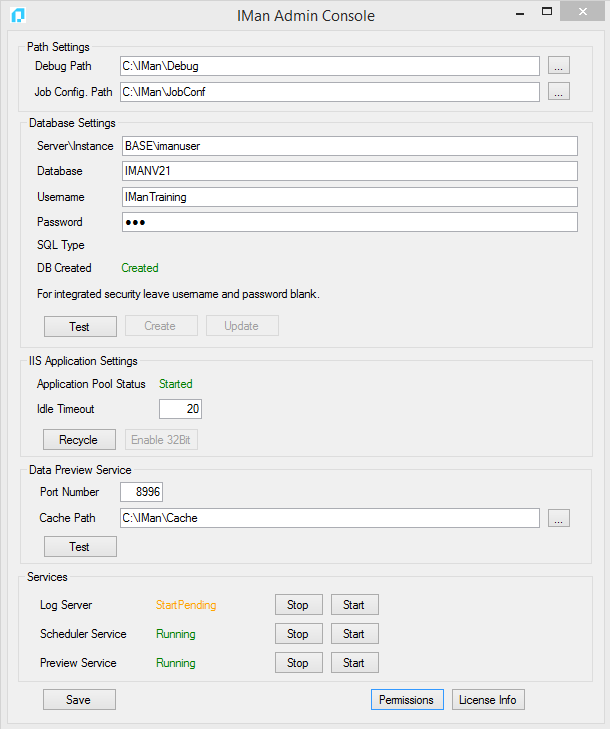
Permissions
The Permissions function allows IMan to run under a specific Windows User account, necessary due to IMan’s architecture. You will find more information in the section for your Sage product.
The Permissions function within the IMan Admin Console:
- Sets the appropriate permissions within IMan.
- Allows the user to both set the required permissions for a specific user, and restore IMan to its default settings.
Note
IMan Permissions can only be changed by an Administrator.
Using the Permissions Function
- Open the Admin Console and press the Permissions button at the bottom.
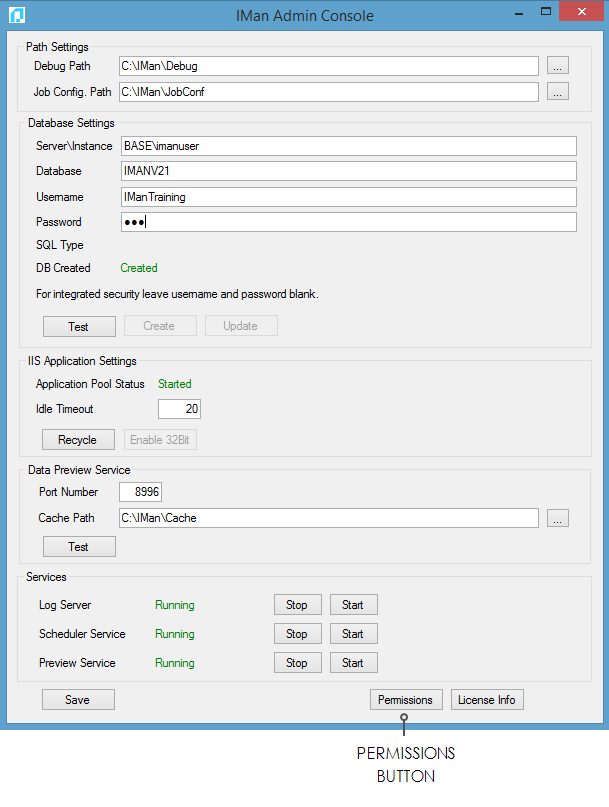
- The IMan Permissions Setup will appear:
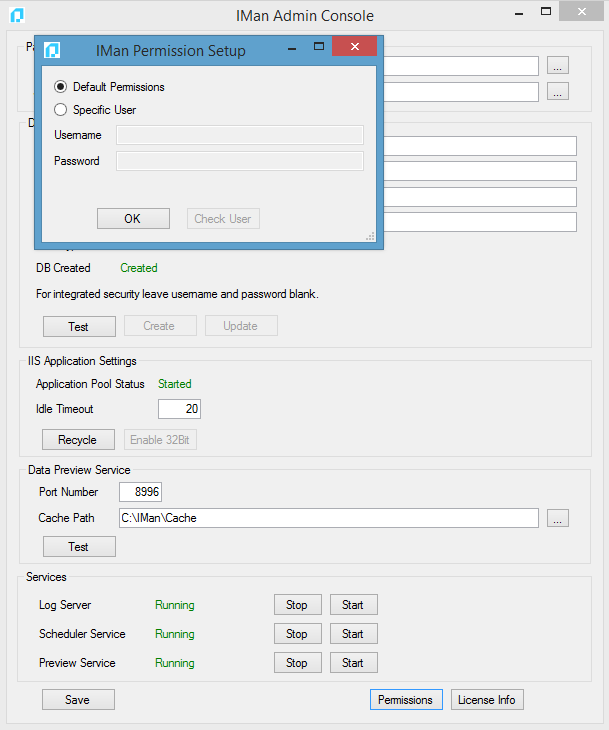
-
Select the Specific User option and enter the username and password into the fields.
-
For local users enter in the form:
- .\<userid>
- <computername>\<user>
- For domain users:
- <domain>\<user>
Important
Please note the domain is case sensitive.
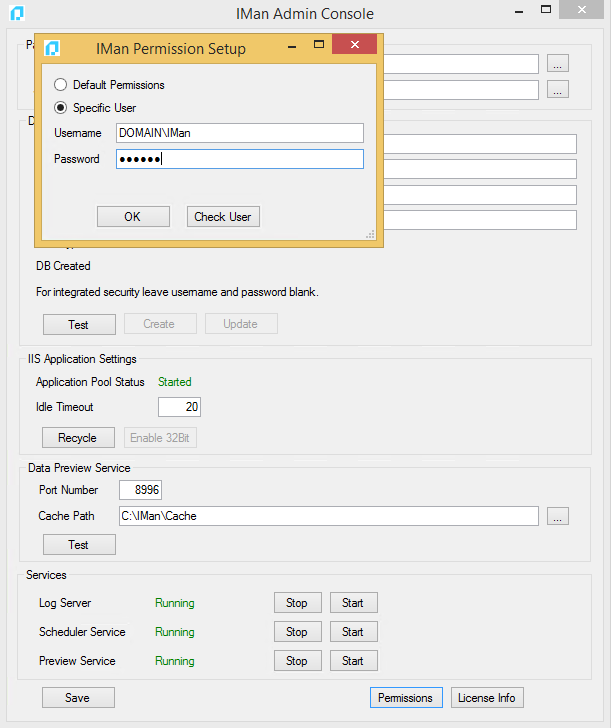
- Password
- The password is used only when the permissions are set, and is not saved anywhere by IMan.
- Check User
- The check will ensure the user and password are valid.
- OK
- This initiates the permissions change.
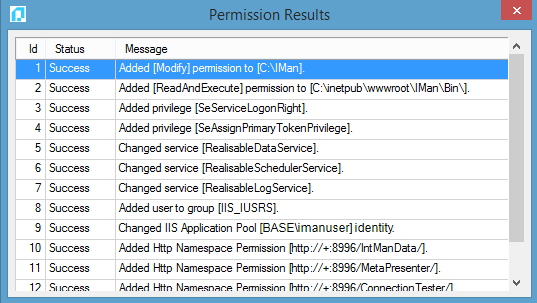
- Successfully changed permissions will be listed within the 'Permission Results' window as shown below:
- If an exception is generated as part of the change it is displayed as part of the log and an attempt is made to rollback any changes.
Note
After any permission change, restart the IMan services and recycle the WebAPI application pool so the changes take effect. Restart Services in the Admin Console does both.
- Press Save, and a dialogue box will appear:
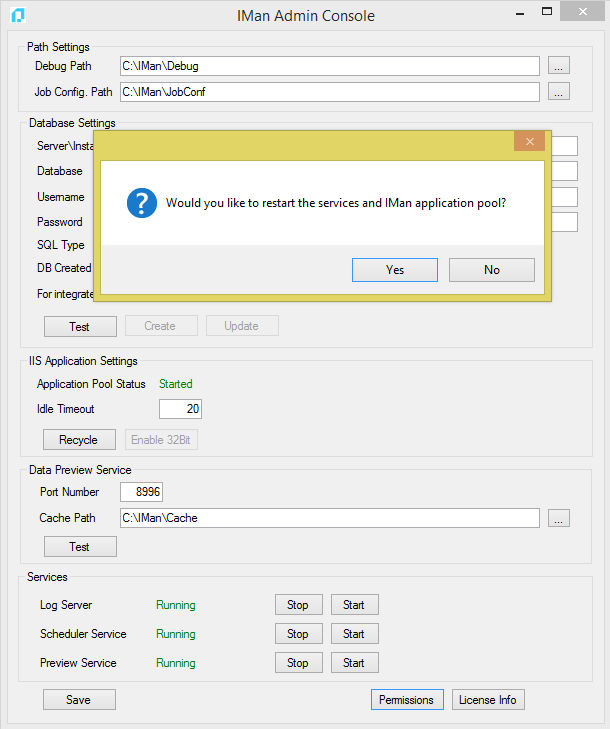
- Press yes.
- The Admin Console restarts the IMan services and recycles the WebAPI application pool: