Technisoft
Service Manager jobs
Views/Record Types Supported
All, except for it is not possible to update Serial Numbers.
Update
Insert/Update
Implementation Notes
Copying From Template
Important
All documents being created must be copied first from either a template or an existing job, a document cannot be created standalone.
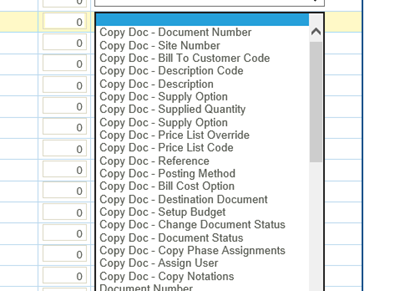
- In the header use the fields with “Copy Doc” description.
- These fields correspond to the fields in the Copy Documents screen.
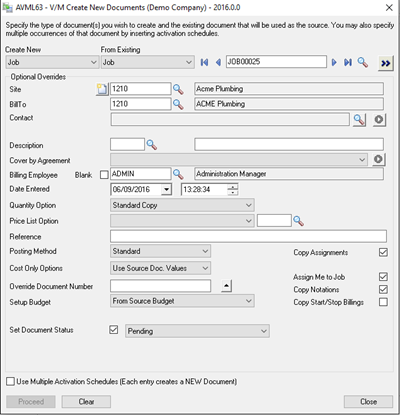
Transaction Hierarchies & Nesting
The hierarchies needed to create documents in Service Manager mimic the structure of the job as viewed from the Document Entry screen.
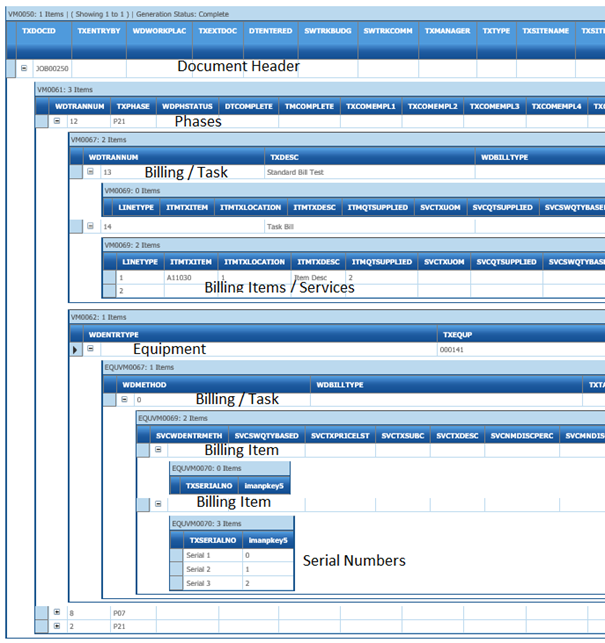
The above screenshot of the Preview screen displays the heavily hierarchical structure corresponding to the following job within Service Manager.
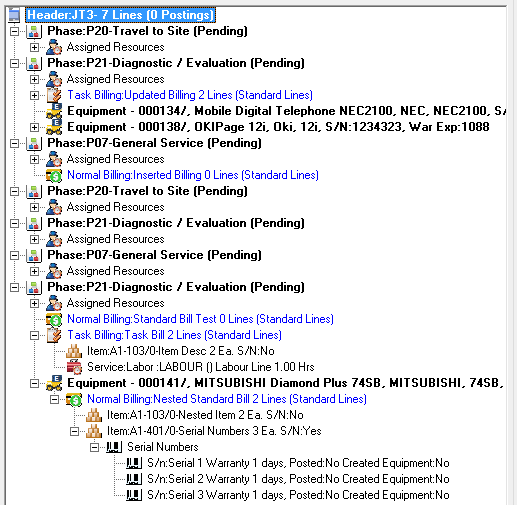
Equipment
Equipment documents allow for billings to be entered under them.
To create/update documents that sit under Equipment documents use the transactions prefixed with “Equip – “.
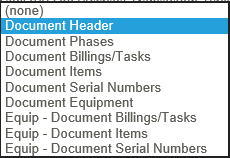
Document Items
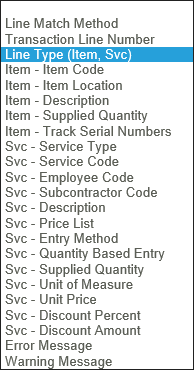
Document items can either be Item Lines or Services.
To set the document item type use either:
- Items (Default)
- Service Items
Notations
Each supporting level can either add new notations or update existing ones.
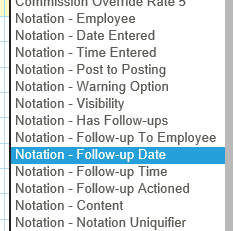
- Notation fields are displayed in line with the corresponding transaction and since they are displayed inline, there can only ever be a single notation added or updated to a level.
- Notations will only be added/updated when the Content field is populated.

Updating Existing Notations
Existing notations may be updated by mapping a valid value to the “Notation Uniquifier” field.
Limitations
- More than one notation cannot be update/added per level per import instance.
- It is not possible to add more than 1 line of notations i.e. more than 250 characters.
- It is not possible to add Objects.
- It is not possible to specify custom fields.
Document Custom Fields
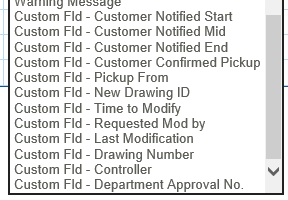
Document Custom fields are presented at the bottom of the document field list and are prefixed with “Custom Fld”. These are dynamically determined by scanning the company.
Document Update Handling
This section describes how to update documents and elements within a document.
General Update Logic
Each document in a job can be updated with either a natural key such as Phase Code, Equipment Number, etc, or the Document’s Transaction Number (WDTRANNUM). The transaction number is the most unique way of identifying a document, but when updating elements within a copied job, it is not always possible to know the transaction numbers prior to them being updated.
Updating a Document
- To update a document set the Document Number field with a valid document number.
Updating a Phase
- To update a phase either set:
- To update a Phase using the WDTRANNUM field, set the field to a valid transaction number. You can optionally set the Line Match Method to '0'.
- Phase Code and set the Line Match Method to a non-zero value (such as 1).
Updating Billing/Tasks
- To update either set:
- To update Billing/Tasks using the WDTRANNUM field, set the field to a valid transaction number. You can optionally set the Line Match Method to '0'.
- Standard Billing - Sine there are no natural keys, the update handling is a bit strange, as the first instance of a standard billing within a Phase or Equipment will be updated.
- Group Method - ‘0’
- Line Match Method to a non-zero value (such as 1).
- For Tasks set the Task Code field to a valid task and set the Line Match Method to a non-zero value (such as 1).
Updating Billing Items
- To update either set:
- To update a Billing Item record using the WDTRANNUM field, set the field to a valid transaction number. You can optionally set the Line Match Method to '0'.
- For Service type Billing Items set the following fields:
- Line Type - '2'
- Set the “Svc – Service Code” field to a valid value.
- Set the Line Match Method to a non-zero value (such as 1).
- For Item type Billing Items set the following fields:
- Line Type - '1'
- Set the “Item – Item Code” field to a valid formatted or unformatted item.
- Set the Line Match Method to a non-zero value (such as 1).
Updating Serial Numbers
- It is not possible to update Serial Numbers.
Updating Equipment
- To update either set:
- To update an Equipment record using the WDTRANNUM field, set the field to a valid transaction number. You can optionally set the Line Match Method to '0'.
- Set the Equipment Number to a valid value and set the Line Match Method to a non-zero value (such as 1).
Updating EquIPment Billing/Tasks
- To update either set:
- To update Billing/Tasks using the WDTRANNUM field, set the field to a valid transaction number. You can optionally set the Line Match Method to '0'.
- Standard Billing - Sine there are no natural keys, the update handling is a bit strange, as the first instance of a standard billing within a Phase or Equipment will be updated.
- Group Method - ‘0’
- Line Match Method to a non-zero value (such as 1).
- For Tasks set the Task Code field to a valid task and set the Line Match Method to a non-zero value (such as 1).
Updating EquIPment Billing Items
- To update either set:
- To update a Billing Item record using the WDTRANNUM field, set the field to a valid transaction number. You can optionally set the Line Match Method to '0'.
- For Service type Billing Items set the following fields:
- Line Type - '2'
- Set the “Svc – Service Code” field to a valid value.
- Set the Line Match Method to a non-zero value (such as 1).
- For Item type Billing Items set the following fields:
- Line Type - '1'
- Set the “Item – Item Code” field to a valid formatted or unformatted item.
- Set the Line Match Method to a non-zero value (such as 1).
Updating Equipment Serial Numbers
- It is not possible to update Equipment Serial Numbers.