2. Printing the Invoice
The despatches exist. In this section you turn each one into an invoice: Sage 200 raises the invoice, posts it to the sales ledger and prints it to the PDF file that 13.1 named. 13.3 then emails that PDF to the customer.
One Sage 200 connector does all three. Unlike the others, its targets are not fields on a Sage 200 record. They are the options the Sage 200 print engine takes: which document, which layout, where to put the result, and whether to post it.
Without the print setup the invoices do not print
IMan must be set up for Sage 200 printing before this step will work. See
IMan Setup for Printing in the IMan Sage
200 User Guide. The setup copies the Sage 200 data model assembly to where
IMan's services can load it, and puts a unity.config in place.
Without it the invoices do not print. Save the integration and do the setup now. It stops and restarts the IMan services.
Sage 200 Invoice Print Connector > Setup
- Open the Connectors group in the palette and drag a Sage 200
connector onto the design surface, below the
INVOICEPREPMap. -
Drag a Connector from the Transforms group and join
INVOICEPREPto it, then save the integration.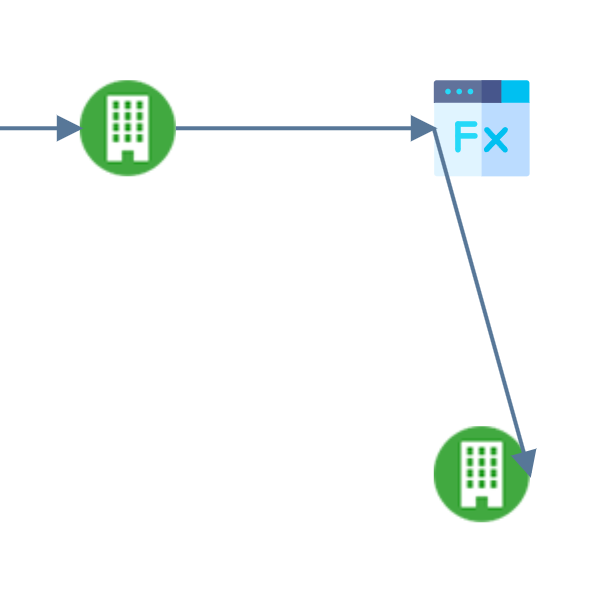
-
Double click it to open it.
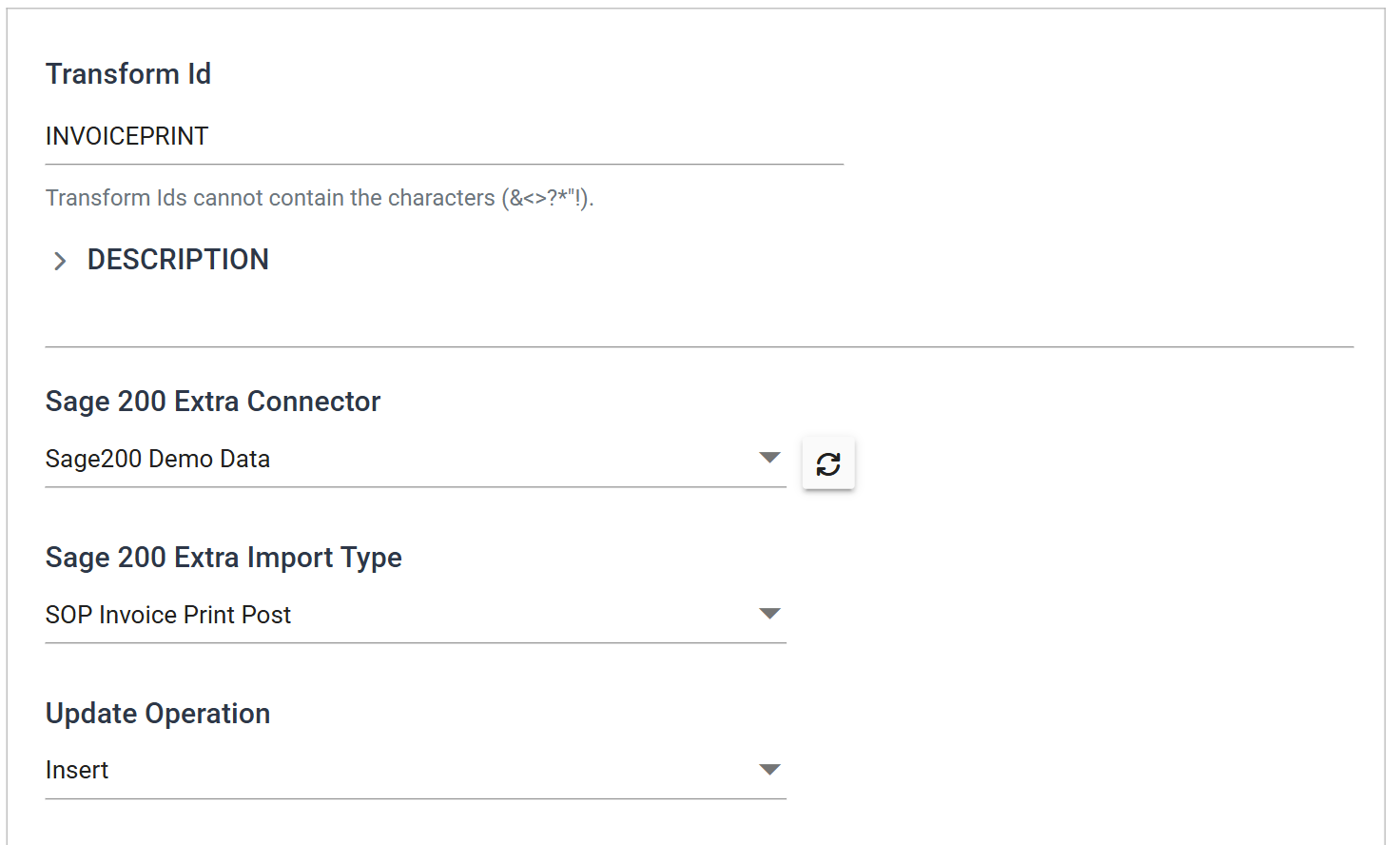
- Transform Id
- For training, enter:
INVOICEPRINT
- For training, enter:
- Sage 200 Extra Connector
- The Sage 200 company to write to. Choose this first. Until it is set, the Import Type list below is empty.
- For training, select: Sage200 Demo Data
- Sage 200 Extra Import Type
- For training, select:
SOP Invoice Print Post
- For training, select:
- Update Operation
- For training, leave as: Insert. It is the only option this import type offers.
Sage 200 Invoice Print Connector > Field Mapping
- Press Field Mapping. Current Transaction Id is on
SOPDespatchReceiptAdjustment, the despatch transaction thatINVOICEPREPadded its five fields to. - Set Sage 200 Extra Transaction Type to
SOPPostInvoice. -
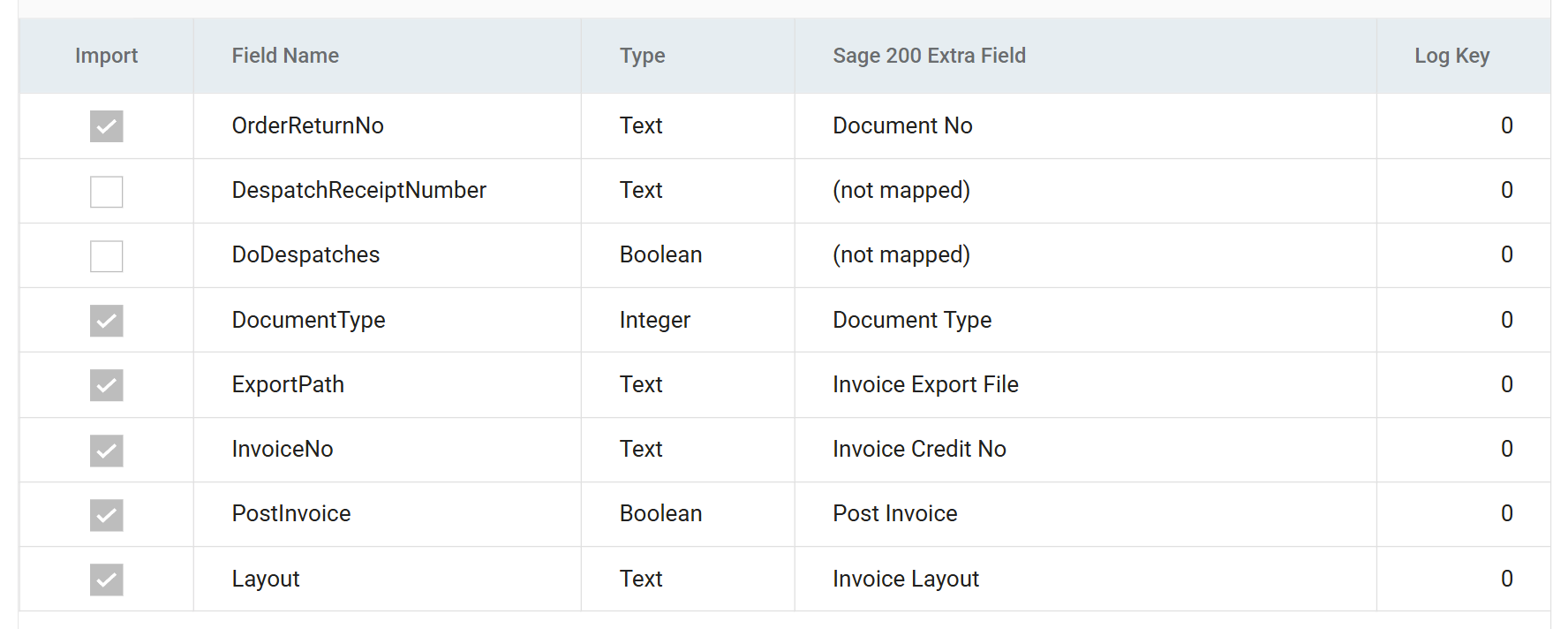
Press Edit and map six fields:
Incoming Field Map To Sage 200 Extra Field OrderReturnNo Document No DocumentType Document Type ExportPath Invoice Export File InvoiceNo Invoice Credit No PostInvoice Post Invoice Layout Invoice Layout -
Press Save on the grid.
Document No is the order number, not the despatch number
Document No is the ORDER number, not the despatch number. This
connector receives OrderReturnNo, and Sage 200 invoices the despatch
outstanding against that order. Here each order has one despatch.
DespatchReceiptNumber also arrives at this connector. Leave it unmapped.
In 13.1 it
names the PDF, but it does not identify the document to invoice.
These targets are not fields on a Sage 200 record
These targets carry no bracketed system name, because they are not fields on
a Sage 200 record. The same list offers Print Invoice, Printer Name,
Print Post Report and Post Report File, among others: everything
the Sage 200 invoice print and post screen asks for. This step exports to a
file instead of printing on paper, so Invoice Export File is the one that
matters.
Running it
Press Refresh. On a connector, this is not a preview. Sage 200 raises each
invoice, posts it to the sales ledger and renders the layout to the file that
INVOICEPREP named.
The invoice number comes back on the preview, in the InvoiceCreditNo column
that went in empty:
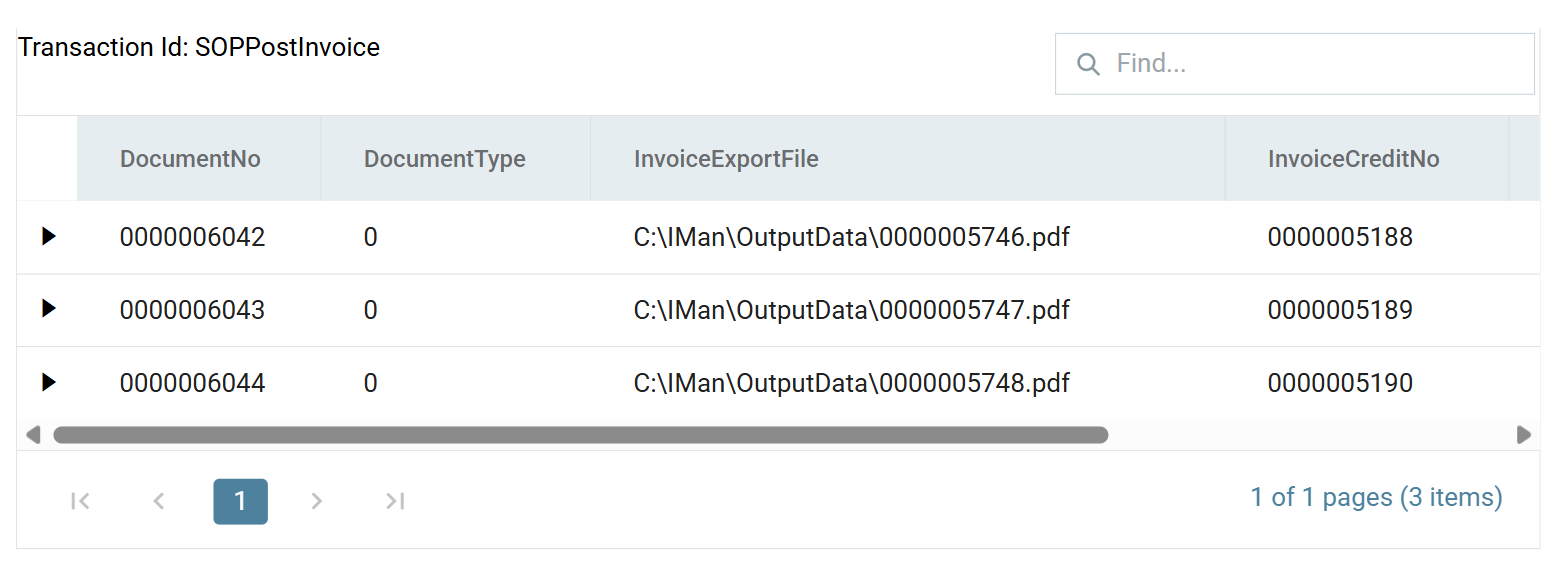
The PDFs are in the output folder, one per despatch:
Press Close and save the integration.
Every Refresh of this connector invoices again
Every Refresh of this connector invoices again, as the despatch connector in 13.1 despatches again. Refresh from the Excel Read down, so the orders being invoiced are ones this run created.
The fields leave under the names this connector gives them
The fields leave this connector under the names it gives them
(DocumentNo, DocumentType, InvoiceExportFile, InvoiceCreditNo,
PostInvoice and InvoiceLayout), not the incoming names on the left of
the mapping table. 13.3 uses these names when it
builds the email.