Managing Secrets
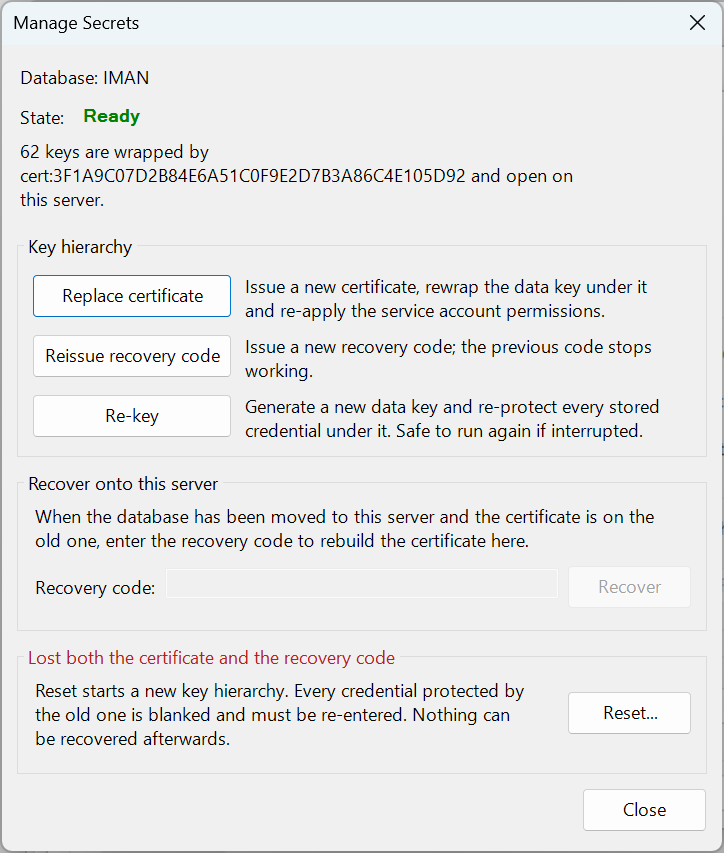
You manage the keys that protect IMan's secrets in the Admin Console. Press Secrets to open the Manage Secrets window. It works on the database in the Admin Console's database settings. If you have not saved those settings, the Admin Console asks you to save them first.
When you close the window after a change, the Admin Console restarts the services and recycles the WebAPI application pool.
State
State shows whether this server can open the keys, and the line below it gives the detail.
| State | Meaning | What you can do |
|---|---|---|
| Ready | The key certificate is on this server and opens every data key. | Replace certificate, Reissue recovery code, Re-key and Reset... |
| Locked | The key certificate is not on this server, or the IMan accounts cannot open it. IMan's services do not start. | Recover, or Reset... as a last resort. See Moving & Recovering. |
| Not initialised | The database has no keys yet. | Run Update in the Admin Console. See Create and Update. |
| Unavailable | The Admin Console could not read the keys, for example because it cannot reach the database. The detail gives the error. | Correct the cause and open the window again. |
Key hierarchy
Replace certificate
Creates a new key certificate on this server and re-encrypts every data key with it. The Admin Console then deletes the old certificate, grants the IMan service accounts access to the new one and issues a new recovery code.
Use it when the certificate might have been copied, or when the service accounts need their access to the key granted again. The data keys themselves do not change. To change them, use Re-key.
Reissue recovery code
Issues a new recovery code. The previous code stops working.
Use it when the recovery code is lost, or when someone who should not have it might have seen it. Do it while the server is working: a lost code cannot be reissued once the certificate is gone too.
Re-key
Creates new data keys and re-encrypts every secret in the database with them. The Admin Console then shows how many values it re-protected. If it stops part-way, for example because the connection drops, run it again. It carries on from where it stopped.
Integration files keep their secrets under the old keys until you next save each integration. IMan keeps the old keys to read them until then.
Use it when a data key might have been exposed. Re-key does not change the certificate or the recovery code.
Recover onto this server
Available when the state is Locked. Type or paste the recovery code into Recovery code and press Recover.
The Admin Console opens the copy of the old certificate's private key that the database holds, and re-encrypts every data key with a new certificate on this server. It then issues a new recovery code. The old code stops working, and the old server's certificate no longer opens the keys.
See Moving & Recovering.
Reset
Use Reset... only when you have lost both the key certificate and the recovery code. It starts a new set of keys, and everything the old keys protected is lost.
Press Reset.... The Reset key hierarchy window explains what Reset does. Type the database name and press Reset.
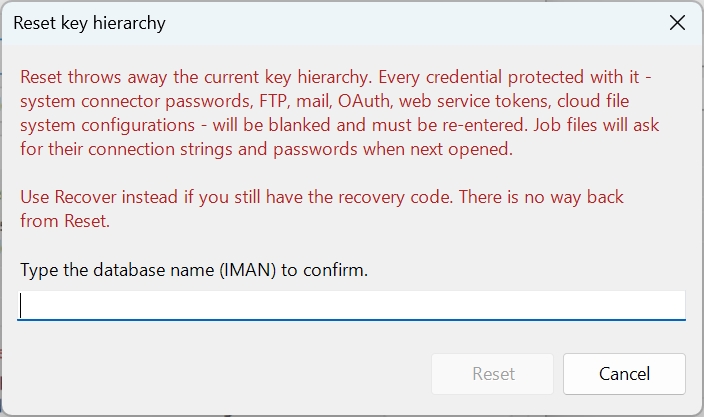
The Admin Console then:
- Clears every secret stored under the old keys.
- Creates a new key certificate and new data keys, and shows the new recovery code.
- Lists the kinds of credential it cleared and how many of each, under Credentials to re-enter.
Enter those credentials again on the Setup screens. When you next open an integration that held a connection string or a password, IMan asks you to enter it again.
The recovery code
Each time the Admin Console issues a recovery code, it shows it once, in a window titled after the operation, for example Key hierarchy initialised.
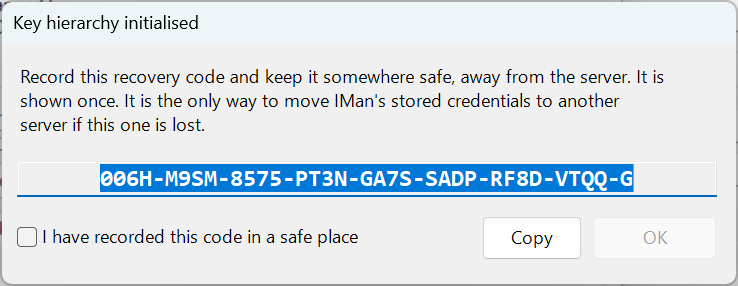
- Press Copy, or write the code down.
- Store it somewhere safe and away from the server, such as your password manager or disaster recovery records.
- Tick I have recorded this code in a safe place and press OK.
The code is eight groups of four characters and a check character. IMan does not keep it and cannot show it again.
Each new code replaces the last. Initialising, Replace certificate, Reissue recovery code, Recover and Reset... all issue a new code, and the previous code then stops working for this database. A database backup keeps the code that was current when the backup was taken. Keep each code with the date you received it.
If the window also lists accounts that could not be granted access to the key, those accounts do not exist on the server yet. Create them, then run Replace certificate.
Create and Update
Create and Update on the Admin Console set secrets up for you.
- Create makes the key certificate and data keys for the new database and shows the recovery code. After the sample integrations prompt, the Admin Console confirms that secrets were initialised and restarts the services.
- Update from IMan 6.0 or earlier makes the keys and shows the recovery code in the same way. It then converts every secret stored in the older format, in the database and in the integration files in the Job Config. path, to the new keys. The Initialising secrets... window shows the progress.
When it finishes, the Admin Console reports how many values it converted and how many remain in the older format. It lists any value it could not convert. Enter those again on the Setup screens or in the integration. The services then restart.
Run Update again to convert anything still in the older format, for example integration files you copy into the Job Config. path later. When the database already has its keys, Update does not issue a new recovery code.
If the database's keys are locked to another server, Update updates the database but stops before its secrets. Recover the keys with the recovery code, then run Update again. See Moving & Recovering.