Tiered Lookups
The Tiered Lookup Maintenance page allows administrators to manage tiered (hierarchical) lookups. Tiered lookups are multi-level lookup structures where each level can define their own rules using one or more matching strategies — fixed values, numeric ranges, tiered lists, or multiple values.
The vales captured in the tiered lookups are queried during data transformation via the TieredLookup Functionfunction.
On this page
- Use Cases
- When and why to use Tiered Lookups
- Tiered Lookup Page Layout
- Page Layout and Navigation
- Editing Lookup Rules
- Defining the heirarchical rules.
- Working with Lookup Data
- Adding and editing the lookup data.
- TieredLookup Function Snippet
- What is it and how to use it?
Use Cases
These above properties allow you to maintain complex sets of rules where the parent/child relationshships can and are variable. Each entry in a lookup can return a single value where the value represents some common entity.
Possible use cases for:
- Tax Rates
- Some countries may have a flat rate for the entire country vs. a different tax rate per state.
- Each state may be further divided into counties.
- Calculate Shipping Costs
- If processing drop-ship orders it may be necessary to calculate the shipping cost on the purchase orders submitted to the suppliers/vendors supplying the products.
- Each supplier would have its own shipping costs which may be based on a variety of factors such as:
- Any/all of Quantity, Cost, Weight, calculated size of the order.
- The area/region the good are being shipped to.
- The type of products being ordered.
- Or may just be a flat rate for all orders.
Typical Workflow
- Navigate to Setup → Tiered Lookup Maint.
- Select a lookup from the drop-down, or use Tiered Lookup Setup (separate page) to create a new tiered list first.
- Click Rules to review or modify the key definitions for the selected lookup.
- Add or edit lookup entries using the Add button or by clicking existing rows/values.
- Click Save to persist your changes.
- For tiered list types, click through value levels to manage deeper tiers of the hierarchy.
Tiered Lookup Page Layout
The page consists of four main areas:
- Lookup Selector
- The drop-down list at the top of the page.
- Rule Editor
- A dialog for adding or editing the key definitions (rules) for the selected lookup.
- Tiered Value List(s)Value
- Rules defined as a tiered lists have their 'items' displayed in a selectable column of values.
- A tiered list entry may itself define the next rule to be a tiered list resulting in another tiered list being shown adjacent to the selected one.
- Grid View
- Displays the lookup entries in a grid (for fixed, range, and multi-key types), depending on the key configuration.
- Code Snippet
- The Code snippet at the bottom provides an example on how to invoke the Tiered Lookup.
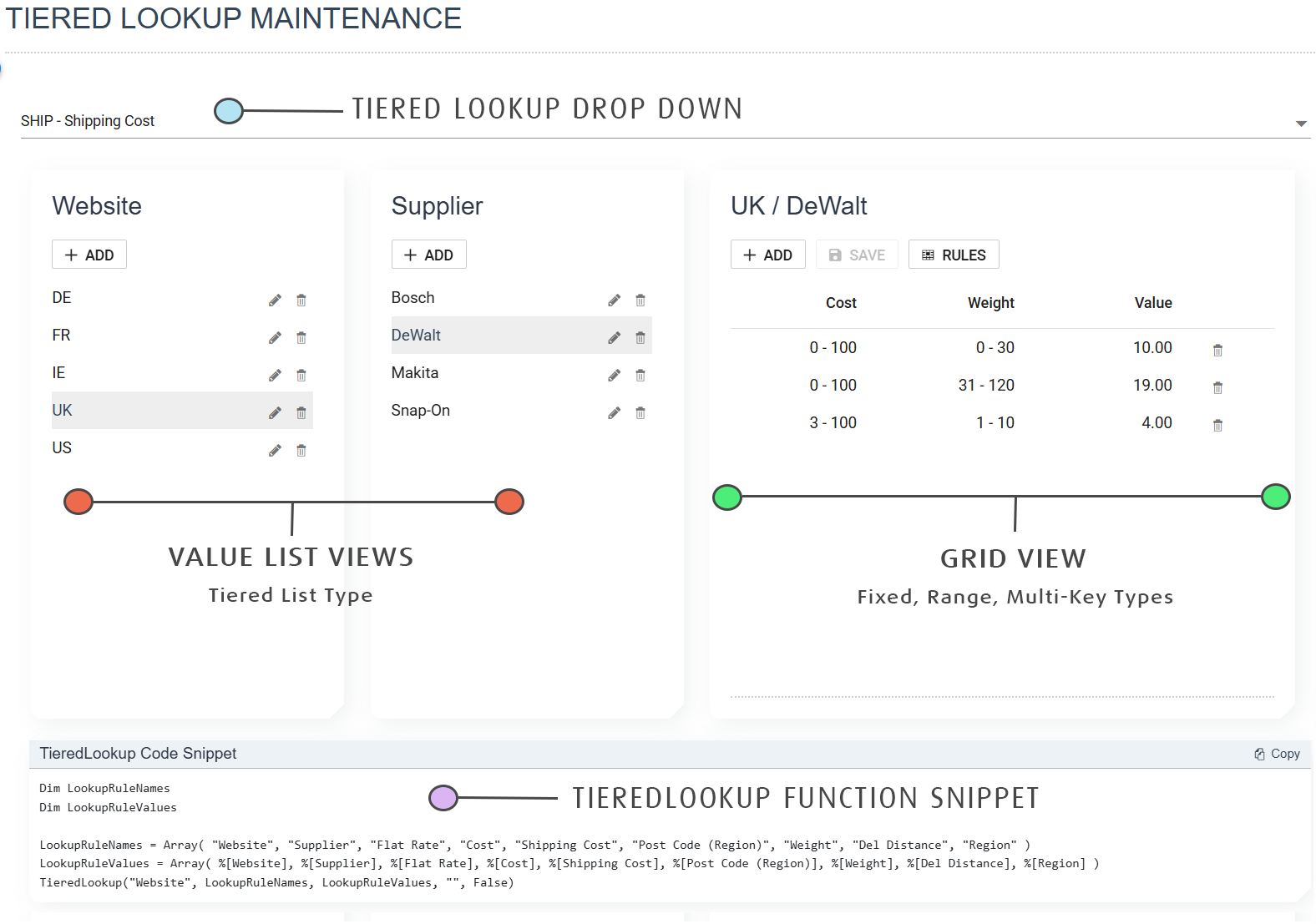
Selecting a Lookup
Select the desired tiered lookup from the drop-down at the top of the page. Selecting a lookup loads its rules and associated data into the editing area below.
Editing Lookup Rules
Rules can be edited in two contexts: when adding items to a Tiered List OR in the Grid View.
Add/Edit/Delete Lookup Rule (Tiered List Value)
The tiered value list has the ability to add/edit/delete the tiered list value.
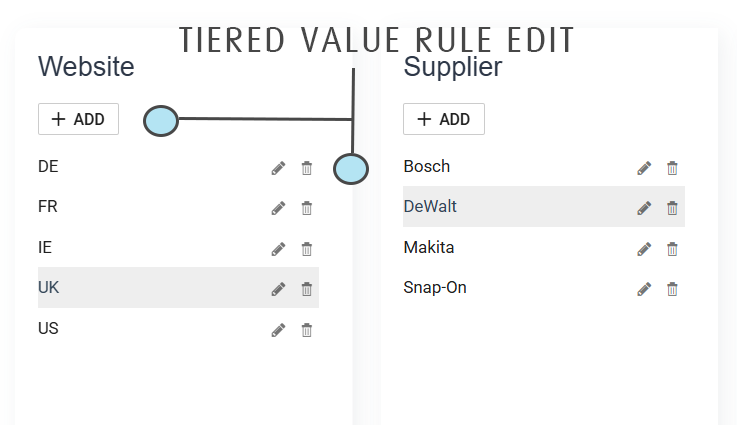
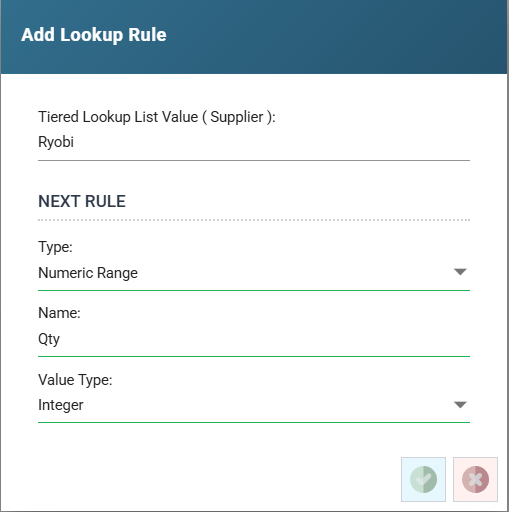
When adding or editing the rule a prompt will appear where the first field is the value (to add) to the tiered hierarchy.
The fields thereafter define the next subsequent rule of the tiered hierarchy.
Rules Button (Grid View)
Click the Rules button in the grid/value view toolbar to open the Add/Edit Rules dialog.
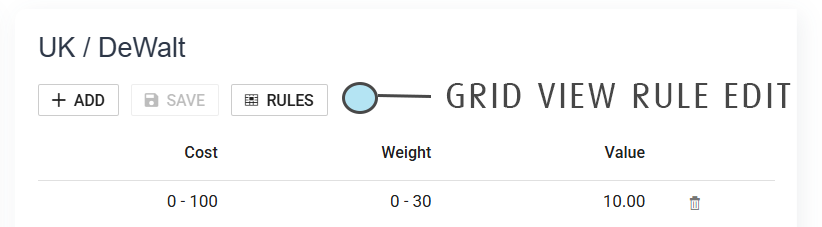
This dialog uses an accordion layout; each accordion item represents one key definition in the tiered hierarchy.
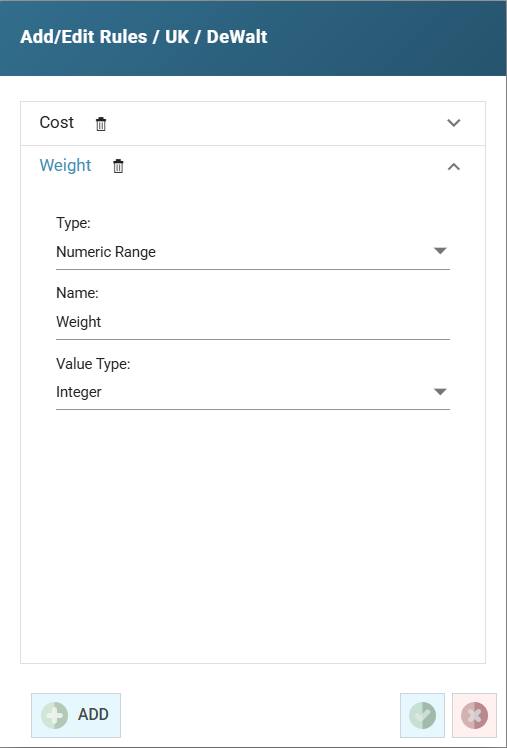
Rule Fields
|
Field |
Description |
|---|---|
|
Tiered Lookup List Value |
The value that this definition represents within its parent tier. Only shown when the parent key type is Tiered List. |
|
(Next Rule) Type |
Determines how the key matches input data. See [Key Types](#key-types) below. |
|
(Next Rule) Name |
A descriptive name for this rule level (e.g. "Region", "Product Code"). Maximum 60 characters. Due to the way TieredLookup function arguments the Name should be consistent across the rules. I.e. If multiple branches have Weight rules they should all be named consistently i.e. 'Weight' i.e. not with differing names 'Weight', 'Weight (g)' and 'Weight (grams).
|
|
(Next Rule) Value Type |
The data type of the key value. Only shown for Fixed Value and Numeric Range types. Options: Boolean, Integer, Decimal, String. |
|
(Next Rule) Match Type |
How values are compared. Only shown for Multiple Values type. Options: Exact, From Start, From End, Anywhere. |
|
(Next Rule) Is Catch All |
A checkbox that allows a key to act as a default/fallback if no exact match is found. Only shown for Multiple Values type. |
Rule Types
|
Type |
Description |
|---|---|
|
Fixed Value |
Matches against a single exact value. |
|
Numeric Range |
Matches when the input falls within a minimum and maximum numeric range. |
|
Tiered List |
Creates a sub-level of named values, each of which can have its own child key definitions. This creates the hierarchical tiers. |
|
Multiple Values |
The data type of the key value. Only shown for Fixed Value and Numeric Range types. Options: Boolean, Integer, Decimal, String. |
Dialog Actions
- Add New (Grid View)
- Adds a new key definition to the current level. The accordion expands to show the new entry.
- Save
- Saves all key definitions and closes the dialog.
- Cancel
- Closes the dialog without saving.
- Delete (trash icon on each item header)
- Removes the key definition. A confirmation dialog will appear.
Working with Lookup Data
After selecting a lookup the editing area shows either a Value List view or a Grid view, depending on the rule type configuration.
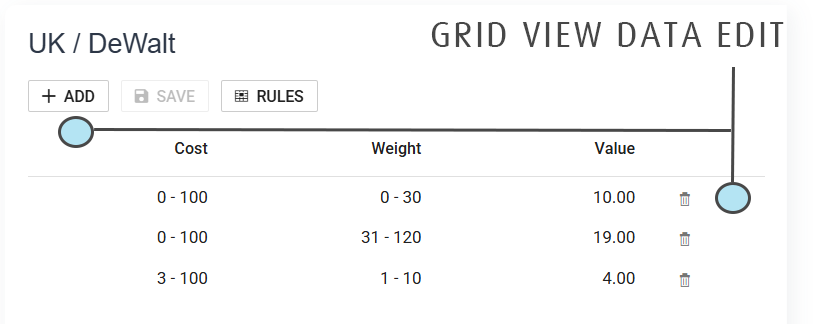
Grid View (Fixed, Range, Multi-Key Types)
The grid displays all lookup entries for the current tier level. Each row shows the key column values and a Value column with the resolved result.
Toolbar actions
- Add
- Opens the edit dialog to create a new lookup entry.
- Save
- Saves all pending changes to the current lookup entries. Only enabled when there are unsaved changes.
- Rules
- Opens the key definition (rules) editor dialog.
ROW actions
- Click a row to open the edit dialog for that entry.
- Click the Delete (trash) icon on a row to remove the entry after confirmation.
Value List View (Tiered List Type)
When a key type is Tiered List, the view displays a list of named values for the current tier. Each value acts as a branch in the hierarchy (see above).
- Add
- Opens a dialog to add a new value to the current tier.
- Edit (pencil icon)
- Enables inline editing of the selected value's properties.
- Delete (trash icon)
- Removes the value after confirmation.
Click a value in the list to navigate deeper into the hierarchy. The right-hand side of the view will display the next tier's data (either another value list or a grid, depending on the child key definitions).
Edit Dialog
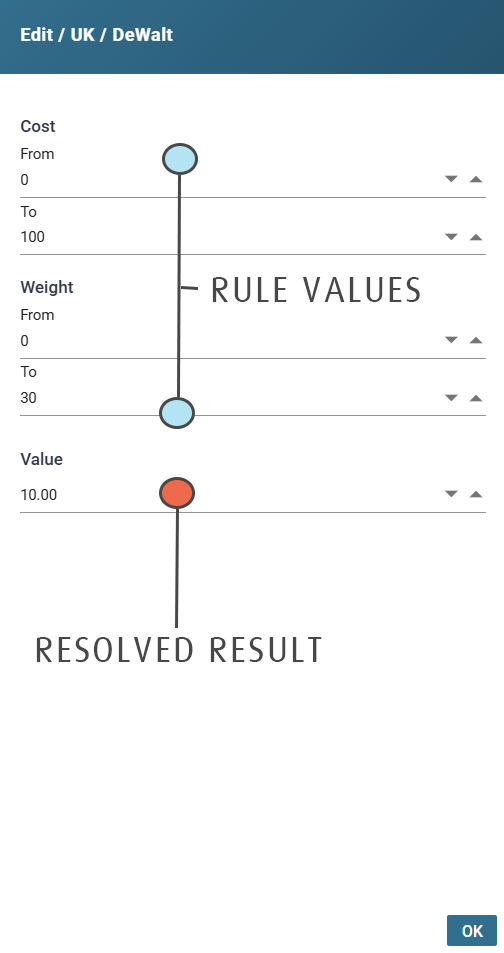
When adding or editing a lookup entry (in grid view), a dialog appears with input fields for each defined key:
- Fixed Value
- A single input field.
- Numeric Range
- Minimum and maximum input fields.
- Multiple Values
- Multiple value input fields based on the match configuration.
- Resolved Result
- The result that the lookup returns when matched.
Click OK to confirm the entry.
Unsaved Changes
The page tracks all modifications. If you attempt to navigate away there are unsaved changes a prompt will ask if the changes should be saved.
TieredLookup Function Snippet
At the bottom of the page is a section showing a code snippet showing how the TieredLookup is invoked.

The snippet auto-updates to reflect the different Rule Names and respective values.
It should be noted the Array of LookupRuleValues is a best guess. Each of field references e.g. %[Website] will likely need changing to either: the actual field names containing values needing to be passed to the function; a constant value or a variable in the VB Script expression.